
Dint+ AI / Product-to-Video
Your product,
in motion.
Turn a product photo into a new way to tell your story. Set the scene, describe the movement, and create with Dint+ AI.
Creative use cases
AI concept demo01 / Fashion & e-commerce
One jacket.
A whole new look.
A model. A product. A direction of your own. Explore a fashion campaign built around a purple suede jacket, from the first references to the finished video.
01 / Add your photos
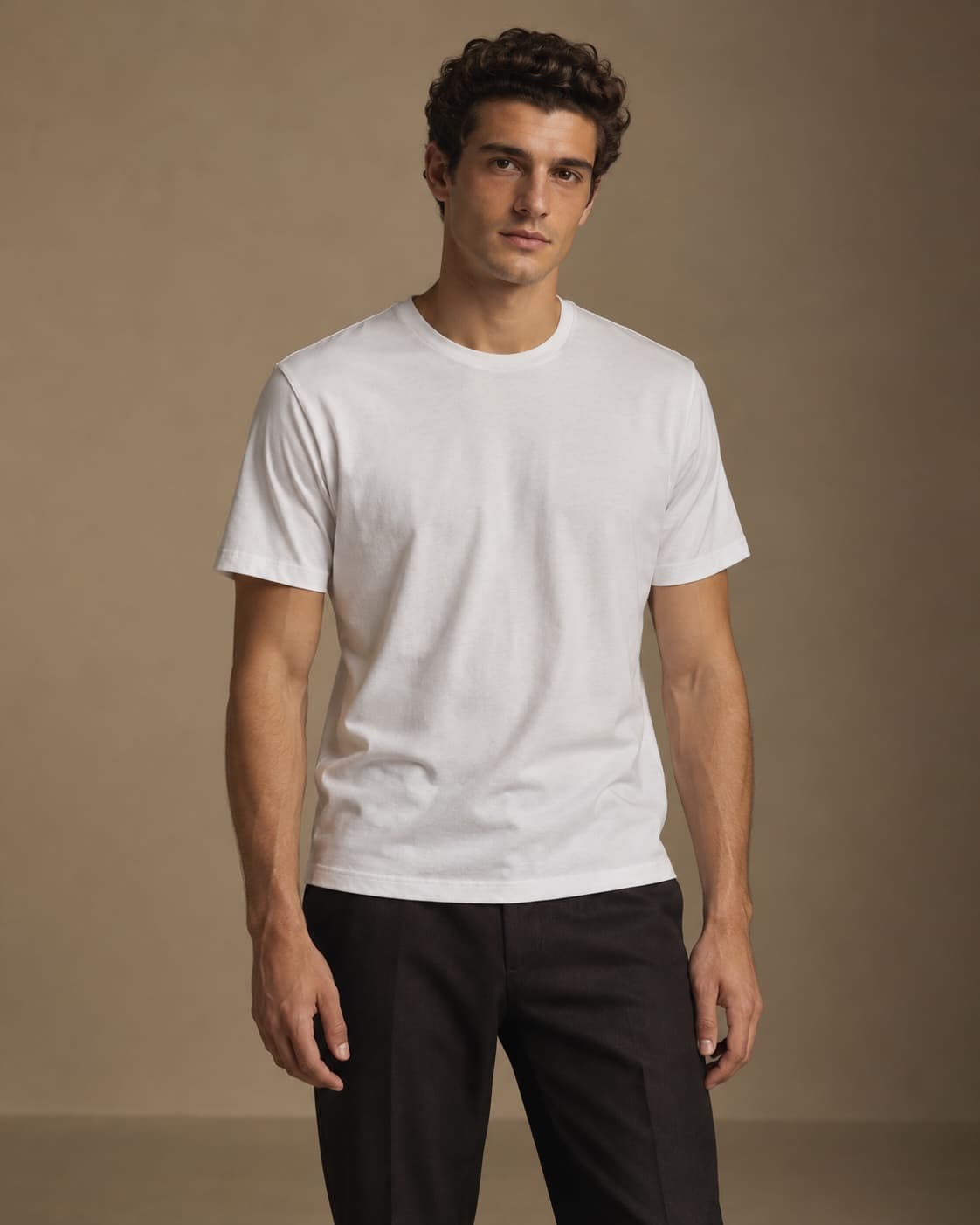
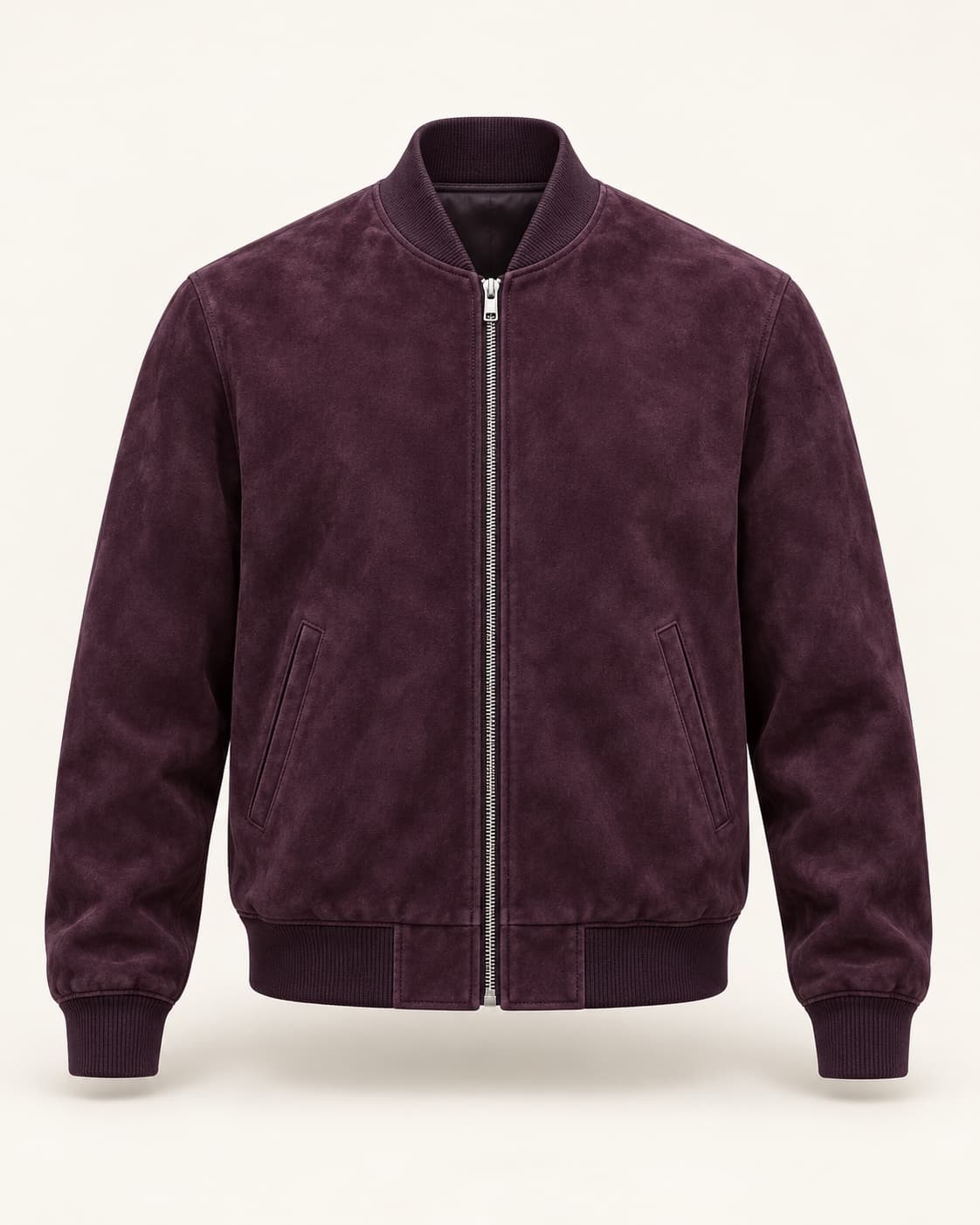
02 / Write your text
Create a fashion commercial video of the model in photo 1 wearing the purple suede jacket in photo 2. Preserve his face, hairstyle and white T-shirt, and the jacket’s aubergine color, silver zipper and suede texture. Show him putting on and gently adjusting the jacket in a warm taupe studio with soft light and a subtle camera push-in.Create your video
03 / Your video
Start from this look and make it move.
Download starting image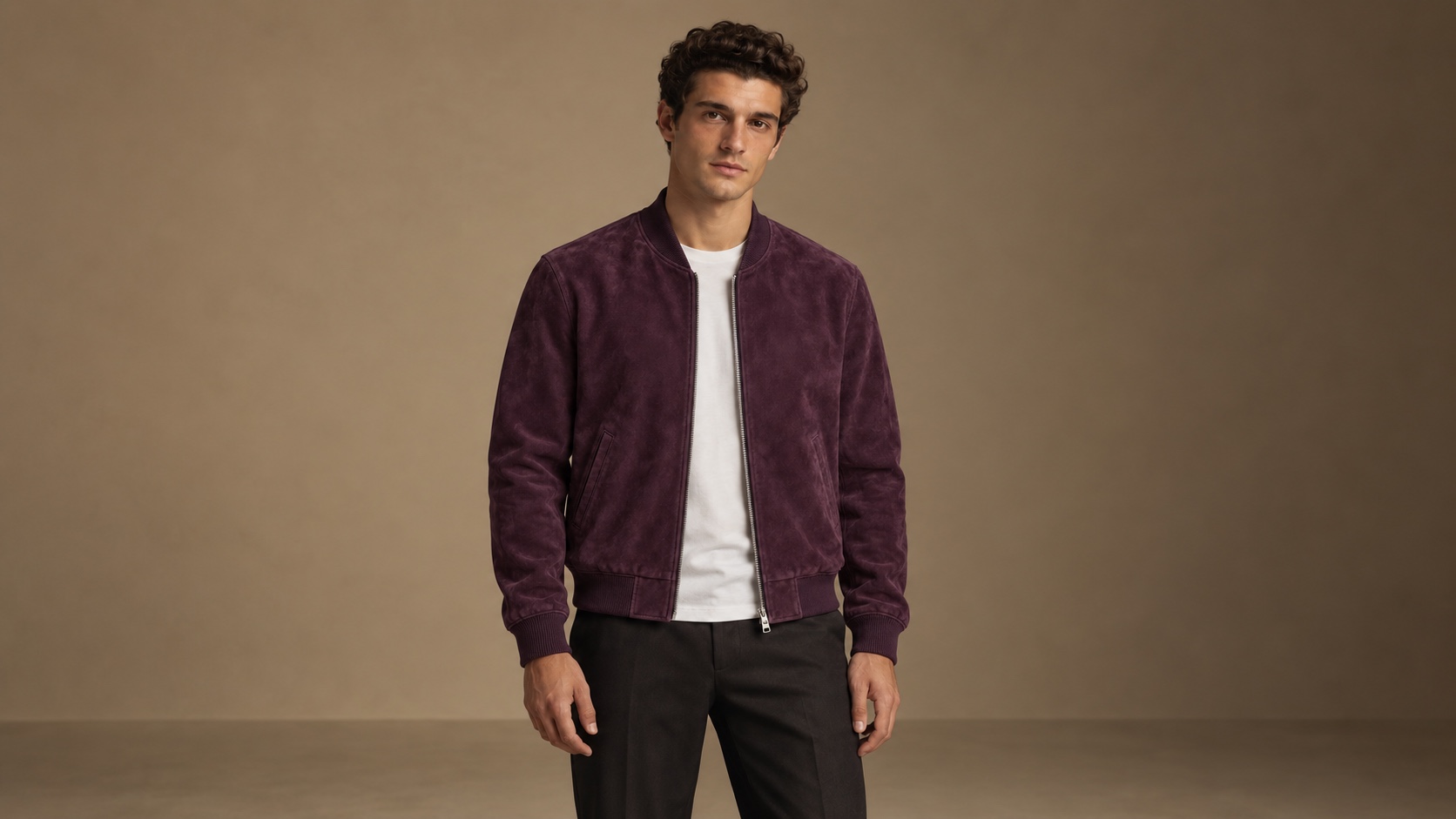
See the motion direction
Create a restrained fashion campaign from this starting image. Preserve the adult model’s face, hairstyle, proportions and white T-shirt, and the exact aubergine suede bomber jacket with its silver zipper, ribbed collar, cuffs, waistband and two welt pockets. The model slowly turns his shoulders a little toward the camera and gently adjusts the jacket hem once, then settles into a relaxed pose. A subtle camera push-in reveals the suede texture. Keep the warm taupe studio, soft side lighting and natural shadows consistent. Realistic fabric motion and anatomy. No outfit changes, extra people, scene cuts, logos, text or music.
Original AI-generated concept references and a photo-to-video sample. An illustrative creative example, not a client endorsement. Product Video can animate a starting photo or prepare a model-and-clothing image before adding motion; generation results vary.
From product photos to video
Your product.
Your creative direction.
Add your photos. Write your direction. A video to review and make your own.
Start with your product.
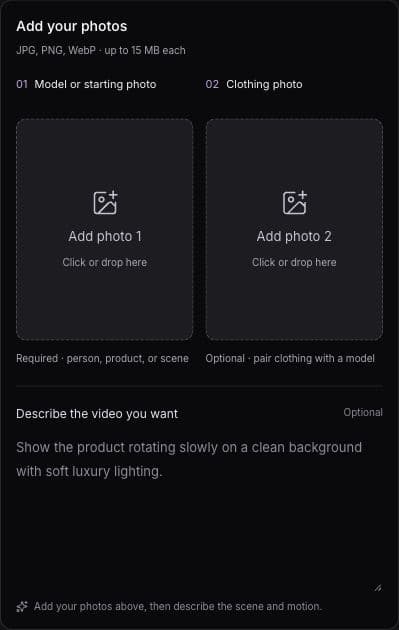
Choose Product Video in Video Studio. Add your model or starting photo in the first slot, then an optional clothing photo in the second. Write your direction underneath.
- 01 / PHOTO
Show what you’re making.
Add a starting photo, or pair a model photo with a clothing photo. Add the product details you want Dint+ AI to work with.
- 02 / CREATION
Give it a direction.
Describe the look and motion. Check the settings and usage estimate available to your account, then request the video.
- 03 / RESULT
Watch. Review. Keep.
Preview completed videos, download the result, or save a library bookmark on your device. Review the output before using or sharing it.
Generation requires sign-in, eligible AI access, and available service capacity. Options and usage charges are shown in the studio. Results can vary.
An idea is a starting point
Choose the story
you want to tell.
Try a direction in your own words. These are example prompts, not fixed presets or guaranteed results.
Studio
“Show the product turning slowly against a clean backdrop, with soft light moving across its details.”
Editorial
“Create an editorial product film with dramatic side lighting, considered framing, and a slow camera move.”
Lifestyle
“Present the product in an everyday setting with warm natural light and a relaxed, unhurried mood.”
Runway-inspired
“Give the product film a premium runway mood: a spotlight, a dark backdrop, and a confident camera move.”
Use one starting photo to animate an existing look, or add a model and a clothing photo to create a new look before animating it.
For businesses & providers
Present your work.
Keep the connection.
Your AI can help with authorized business work, while creative tools help you explore how to present it. Review and download completed media, then use supported profile, listing, or content upload tools where appropriate.
Explore servicesYou choose where to upload or publish. Generating a video does not automatically change your listing.
For creators
Make something.
Bring people together.
Build visual stories around products and ideas. In supported mobile versions, use Post from a completed generated video to share through the feed. Connect with your audience, with tips available on eligible videos and Shorts.
How creator support connectsPublishing is a separate action. Use photos and references you have permission to use, and check the result and applicable terms before sharing.
Keep creating
More than one way
to bring an idea to life.
Creative visuals
Describe a scene in Photo Studio. Explore supported image styles, review the results, and save or download the images you want to keep.
Open Photo StudioAI Music
Choose a mood, genre, and vocal direction. Create a track, listen to completed results, and keep them in your library.
Open Music Studio